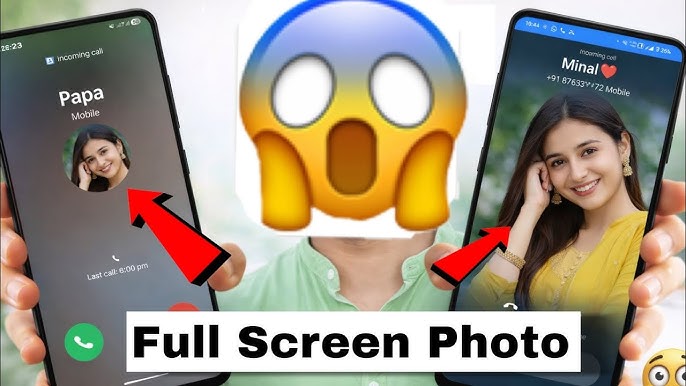
Have you ever wanted your favorite photo—maybe of your loved ones, yourself, or something aesthetic—to appear when someone calls you?
Good news: in 2026, customizing your call screen is easier than ever—and you don’t need to pay for any premium apps.
In this guide, you’ll learn how to set your photo as a call background for free, whether you’re using Android or iPhone.
🔍 Why Set a Custom Call Background?
Before we jump in, here’s why people love this feature:
- Personalizes your phone experience
- Makes incoming calls visually appealing
- Helps quickly identify callers
- Adds a unique aesthetic touch
📲 Method 1: Set Photo as Call Background on Android (Built-in Feature)
Most modern Android phones (Samsung, Xiaomi, Oppo, Vivo, etc.) already support this feature.
✅ Steps:
- Open your Contacts app
- Select the contact you want to customize
- Tap Edit (✏️ icon)
- Tap on the profile picture
- Choose Gallery
- Select your desired photo
- Adjust and crop the image
- Tap Save
📌 Now, when that person calls you, their photo will appear on the call screen.
🎨 Method 2: Use a Free App for Full-Screen Call Background
If your phone doesn’t support full-screen photos, you can use apps like:
- Truecaller
- Full Screen Caller ID
- Call Screen Themes
📥 Steps:
- Install any of the apps above from Play Store
- Open the app and grant permissions
- Select Call Background / Caller Screen Settings
- Choose your photo from gallery
- Apply it to all contacts or specific ones
💡 Tip: Some apps allow video backgrounds too!
🍏 Method 3: Set Contact Photo on iPhone (iOS 17 & Later)
Apple introduced advanced contact customization features recently.
✅ Steps:
- Open the Phone app
- Go to Contacts
- Select a contact
- Tap Edit
- Tap Add Photo
- Choose from:
- Photos
- Memoji
- Monogram
- Customize style (font, color, filters)
- Tap Done
📌 On newer iPhones, this photo appears beautifully during calls.
🧠 Pro Tip: Use High-Quality Images
For best results:
- Use HD or 4K photos
- Avoid blurry or dark images
- Center the face or subject
- Use portrait images for better fit
⚠️ Common Issues & Fixes
❌ Photo not showing full screen?
→ Your phone may not support it natively—use an app
❌ Image looks cropped badly?
→ Adjust aspect ratio before saving
❌ App not working?
→ Check permissions (Contacts, Phone, Storage)
🔐 Is It Safe to Use Third-Party Apps?
Yes—but be careful:
- Only download from official stores
- Check app ratings and reviews
- Avoid apps asking unnecessary permissions
🎯 Final Thoughts
Setting your photo as a call background is one of the easiest ways to personalize your smartphone in 2026—and the best part is, it’s completely free.
Whether you use built-in features or free apps, you can transform your calling experience in just a few minutes.