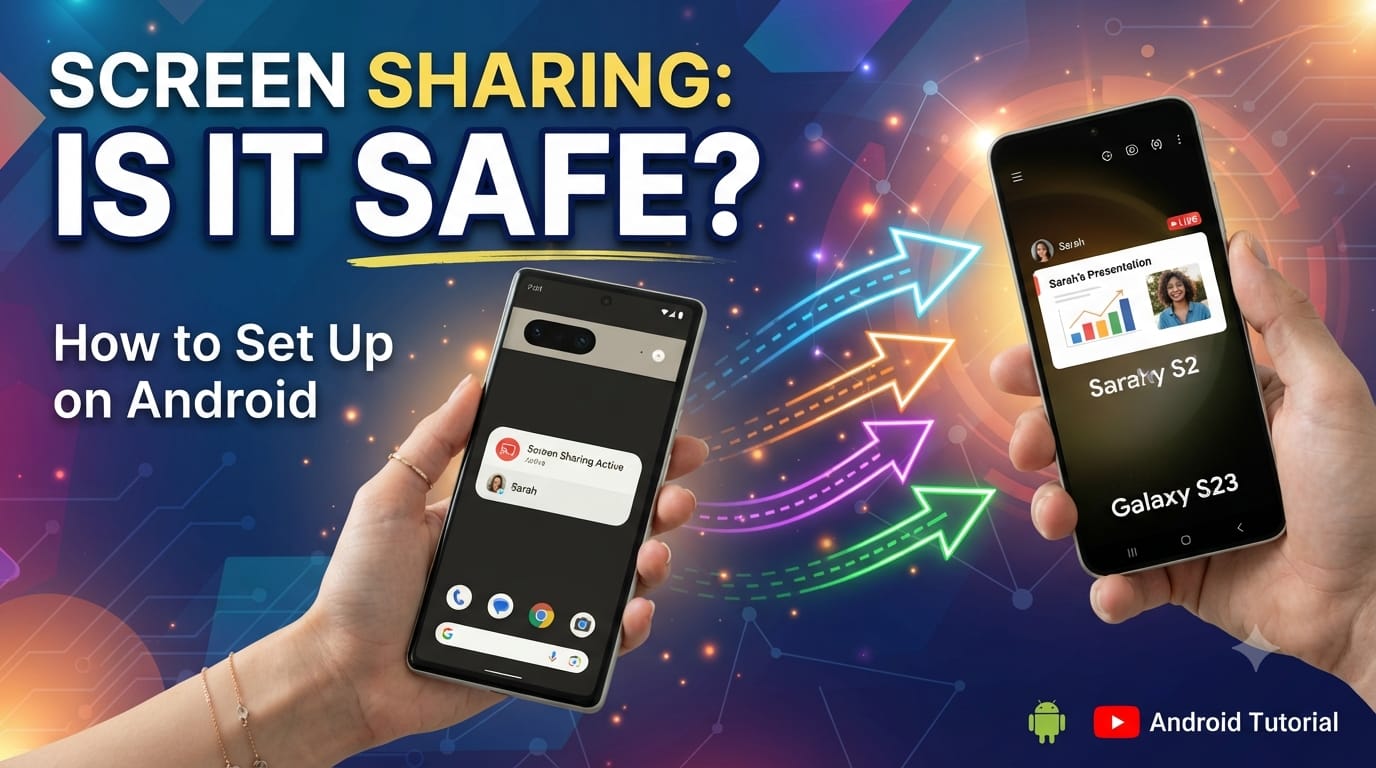
Screen sharing on Android is a useful feature that lets you show everything happening on your phone’s display to another device or person. Whether you want to watch videos on a TV, demonstrate an app, give a presentation, troubleshoot a phone problem, or help someone remotely, Android screen sharing can make the process much easier.
But one common question is: Is screen sharing on Android safe to use? In most cases, yes. However, your privacy depends on how you share your screen, which app or device you use, and what information is visible while sharing.
What Is Screen Sharing on Android?
Android screen sharing allows you to display your phone’s screen on another device. Depending on your phone and the service you are using, this may also be called screen mirroring, screen casting, or casting.
For example, you can share your Android screen with a smart TV using Google Cast or use applications such as Google Meet, Zoom, or Microsoft Teams to share your screen during a call.
The exact options can vary depending on your Android version and phone manufacturer.
How to Set Up Screen Sharing on Android
The easiest method is usually built into Android.
Step 1: Open Quick Settings
Unlock your Android phone and swipe down from the top of the screen. You may need to swipe down twice to see all available Quick Settings.
Look for an option such as Cast, Screen Cast, Smart View, Screen Share, or Wireless Display.
The name depends on your phone manufacturer.
Step 2: Select Your Device
Tap the screen-sharing or casting option. Your phone will search for compatible devices nearby.
Make sure your smart TV, streaming device, or other receiving device is turned on and connected to the same Wi-Fi network when required.
Select the device you want to connect to.
Step 3: Confirm the Connection
Some devices may ask you to confirm the connection or enter a PIN displayed on the TV or receiving screen.
Once connected, your Android screen should appear on the other device.
Step 4: Stop Screen Sharing
When you are finished, open your notification panel or Quick Settings and tap the casting or screen-sharing notification. Then choose Disconnect or Stop casting.
Always stop screen sharing when you no longer need it.
Is Android Screen Sharing Safe?
Generally, screen sharing is safe when you use trusted features and apps. However, sharing your screen can expose sensitive information.
Anything visible on your display may potentially be seen by the person or device receiving your screen. This could include private messages, notifications, passwords, emails, banking information, photos, or other personal data.
For this reason, you should be careful before starting a screen-sharing session.
How to Screen Share Safely
There are several simple ways to improve your privacy.
Turn off sensitive notifications: Notifications can appear while you are sharing your screen. Enable Do Not Disturb or temporarily disable sensitive notification previews.
Use trusted apps: Download screen-sharing applications only from reputable sources such as the Google Play Store.
Check who you are sharing with: Before pressing the share button, verify the person, meeting, or device receiving your screen.
Avoid sensitive activities: Don’t open banking apps, password managers, private messages, or confidential documents while your screen is being shared.
Stop sharing when finished: Never leave an active screen-sharing session running unnecessarily.
Screen Sharing vs. Screen Mirroring
Although these terms are often used interchangeably, they can refer to slightly different experiences.
Screen mirroring generally means displaying your entire phone screen on another display, such as a TV.
Screen sharing is commonly used during online meetings or support sessions, where another person can see your phone screen remotely.
Both can be useful, but both require you to consider privacy.
Frequently Asked Questions
Can I screen share Android to a TV?
Yes. Many Android phones can cast or mirror their screens to compatible smart TVs or streaming devices. The exact method depends on your phone and TV.
Does screen sharing use mobile data?
It depends on the method. Wireless casting on a local network generally uses Wi-Fi, while remote screen sharing through an online meeting service may use internet data.
Can someone control my Android phone through screen sharing?
Normally, simply sharing your screen does not automatically give another person control of your phone. However, some remote-support applications can request additional permissions that may allow interaction with your device. Only grant such permissions to people and apps you trust.
Final Thoughts
Android screen sharing is a convenient feature for entertainment, presentations, technical support, and online meetings. It is generally safe when used carefully, but you should always remember that anything visible on your screen may be exposed during a sharing session.
Use trusted apps and devices, check your permissions, hide sensitive notifications, avoid opening private information, and disconnect as soon as you’re finished. With these simple precautions, you can enjoy the convenience of Android screen sharing while keeping your personal information more secure.