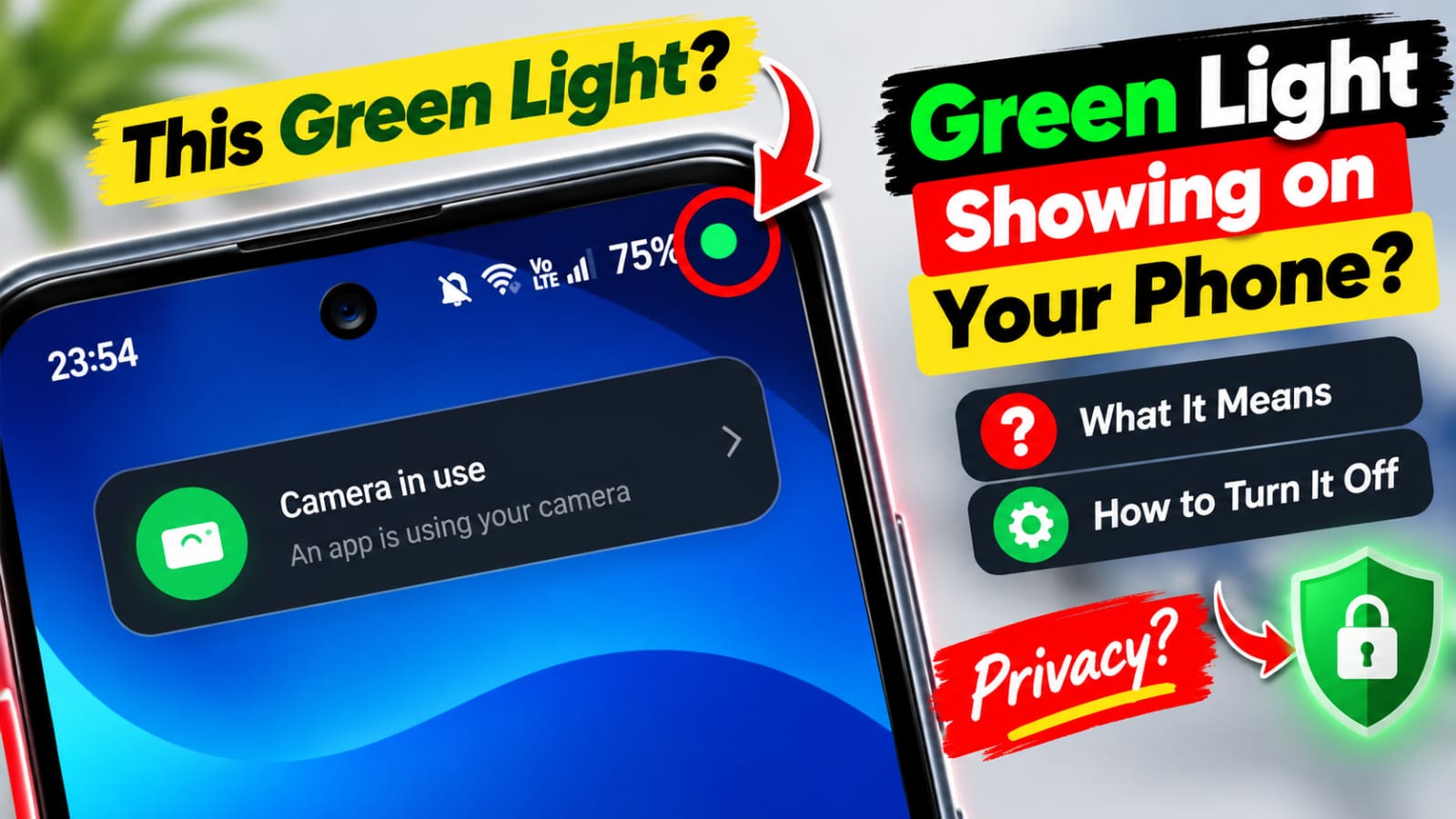
Green Light Showing on Your Phone: What It Means & How to Turn It Off
Have you ever noticed a green light or green dot showing on your phone and wondered what it means? If you’re using a modern Android phone or iPhone, a green indicator can appear when certain privacy-sensitive features are being accessed. For many users, seeing this green light for the first time can be confusing.
The good news is that the green indicator is generally a privacy notification designed to let you know when your phone’s camera or related features are being used.
What Does the Green Light Mean on a Phone?
A green indicator usually means that an application is currently accessing your phone’s camera. Depending on your device and operating system, the indicator may appear as a small green dot or symbol near the top of the screen.
This feature is designed to improve smartphone privacy. Instead of allowing an application to access the camera without any visible indication, the operating system provides a visual notification.
For example, if you open the Camera app, scan something using a camera-based feature, or use an application that requires camera access, you may see the green indicator.
Why Is the Green Dot Showing?
There can be several normal reasons why a green light appears on your phone.
You may see it when using:
- The Camera app
- Video calling applications
- Social media camera features
- QR code scanners
- Video recording apps
- Apps that use camera-based effects
- Other applications with camera permissions
Sometimes the indicator can remain visible briefly after leaving an application because the camera may still be active for a short period.
If you don’t recognize which application is using the camera, checking your phone’s privacy settings and permission history can help identify the app.
How to Find Which App Is Using Your Camera
On many modern smartphones, tapping or interacting with the privacy indicator can provide additional information about which application recently accessed the camera.
You can also review individual application permissions.
On Android, open Settings, then look for Privacy, Permission Manager, or Camera permissions, depending on your phone manufacturer and Android version.
On iPhone, you can check Settings > Privacy & Security > Camera to see which applications have permission to use the camera.
The exact menu names can vary between devices and operating-system versions.
How to Turn Off the Green Light
In most cases, you cannot simply disable the privacy indicator while allowing an application to continue using the camera. The indicator exists specifically to inform you when camera access is occurring.
Instead, if you don’t want an app accessing your camera, you can remove its camera permission.
On Android, go to the app’s permissions and change Camera access to an appropriate option, such as “Don’t allow,” if available.
On iPhone, open Settings > Privacy & Security > Camera and turn off camera access for applications that don’t need it.
Remember that disabling camera permission can prevent certain apps from working correctly when they require the camera.
Should You Be Worried About the Green Light?
Seeing a green dot doesn’t automatically mean that your phone has been hacked or that someone is secretly watching you. In many situations, it simply means that an application is using the camera feature you previously authorized.
However, if the indicator appears repeatedly when you aren’t using camera-related features, it’s worth checking your installed applications and their permissions.
Keeping your operating system and apps updated is also a good smartphone security practice.
Final Thoughts
The green light on your phone is primarily a privacy indicator that helps you understand when camera access is taking place. Rather than ignoring it, use it as a useful way to monitor your smartphone’s privacy.
If an application doesn’t need camera access, you can review its permissions and remove access. Checking privacy settings regularly can also help you maintain better control over your personal information.
Whether you’re using Android or iPhone, understanding privacy indicators can make it easier to identify which apps are accessing sensitive features and keep your device more secure.