Smartphone security has become more important than ever. We store personal photos, private messages, banking apps, work files, and even digital IDs on our phones. While PINs, patterns, fingerprints, and face unlock are common, many users now ask:
Can I lock my Android phone with my voice?
The short answer: yes—indirectly.
Android doesn’t offer a pure “voice-only lock” as the main unlock method, but you can use voice recognition features and apps to add an extra layer of security or unlock your device hands-free in certain situations.
In this guide, you’ll learn:
-
What voice lock means on Android
-
Built-in options available on most phones
-
How to use Google voice recognition
-
Third-party apps that enable voice unlocking
-
Security tips and limitations
Let’s dive in.
What Is Voice Lock on Android?
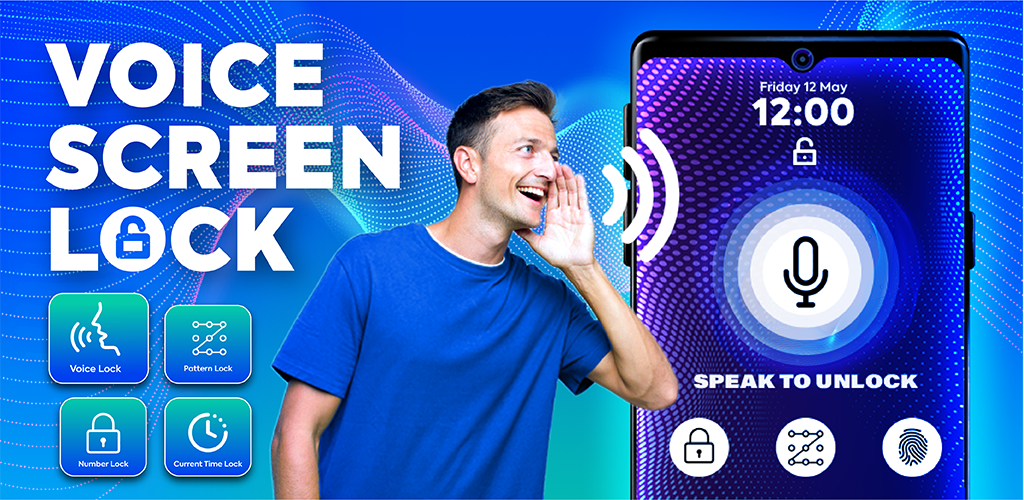
A voice lock lets your phone recognize your voice and respond only when you speak a specific phrase or command.
Instead of typing a PIN or scanning your fingerprint, you say something like:
“Unlock my phone.”
Your device checks your voiceprint and—if it matches—grants access.
However, Android treats voice recognition mainly as a convenience feature, not a primary security method. That’s why it’s usually combined with:
-
PIN or password
-
Fingerprint
-
Face unlock
Think of voice lock as extra protection or quick access, not your only shield.
Method 1: Use Built-In Voice Match on Android
Most Android phones come with Google’s Voice Match feature. It allows the assistant to recognize your voice and respond only to you.
How to Enable Voice Recognition
-
Open Settings on your phone
-
Go to Google → Settings for Google apps
-
Tap Search, Assistant & Voice
-
Select Voice → Voice Match
-
Turn on Hey Google
-
Follow the prompts to record your voice
Your phone will now recognize you when you say “Hey Google.”
Can Voice Match Unlock the Phone?
On some older versions of Android, Voice Match could unlock the device directly. Newer versions restrict this for security reasons.
Today, Voice Match can:
-
Make calls
-
Send texts
-
Open apps
-
Set reminders
-
Control smart devices
…but usually won’t fully bypass your lock screen unless the phone is already unlocked or trusted.
Still, it’s useful for hands-free control.
Method 2: Use Smart Lock for Trusted Situations
If your goal is convenience, Android’s Smart Lock can help.
Smart Lock keeps your phone unlocked when:
-
You’re at a trusted location (like home)
-
Connected to a trusted Bluetooth device
-
You’re carrying it
How to Turn On Smart Lock
-
Go to Settings
-
Open Security & privacy (or just Security)
-
Tap More security settings
-
Choose Smart Lock
-
Enter your PIN or password
-
Add trusted places or devices
While this isn’t voice-based, combining Smart Lock with voice commands gives you smoother daily use.
Method 3: Install a Third-Party Voice Lock App
If you truly want a voice password, third-party apps are your best option.
These apps ask you to record a custom phrase, such as:
“Bilal unlock my phone now.”
When spoken correctly, the app unlocks the screen.
Typical Setup Process
-
Install a voice lock app from the Play Store
-
Open it and grant required permissions
-
Set a backup PIN or pattern
-
Record your voice phrase
-
Test recognition
-
Activate the lock screen
Some apps even let you:
-
Set multiple phrases
-
Trigger alarms on failed attempts
-
Take photos of intruders
-
Log unlock attempts
Are Third-Party Voice Locks Safe?
They’re fun and useful—but not as secure as biometrics.
Voice can be:
-
Recorded
-
Imitated
-
Played back through speakers
That’s why experts recommend using voice lock alongside fingerprint or PIN—not alone.
Method 4: Automation Apps + Voice Commands
Advanced users can combine automation apps with voice assistants.
For example:
-
Voice command triggers automation
-
Automation disables screen lock temporarily
-
Phone unlocks when conditions are met
This method is powerful but requires technical setup and careful permissions management.
It’s best for tech-savvy users who understand Android security controls.
Pros and Cons of Using Voice Lock
✅ Advantages
-
Hands-free access
-
Cool and futuristic
-
Useful while driving or cooking
-
Adds another authentication layer
-
Works for people with accessibility needs
❌ Disadvantages
-
Less secure than fingerprints
-
Can fail in noisy environments
-
Voice changes with illness
-
Vulnerable to recordings
-
Not officially supported as primary lock
Best Security Tips When Using Voice Unlock
If you decide to enable voice-based unlocking, follow these tips:
-
Always keep a PIN or fingerprint as backup
-
Use a long, unique phrase
-
Don’t say your phrase in public
-
Avoid common words
-
Enable failed-attempt alerts
-
Keep your phone updated
-
Only download apps with good reviews
Security should always come first.
Frequently Asked Questions
Can I unlock any Android phone with my voice?
Most phones can use voice recognition features or third-party apps, but native full voice unlocking is limited for safety reasons.
Is voice lock better than fingerprint?
No. Fingerprints and face unlock are far more secure. Voice is best used as a secondary method.
Does voice unlock work offline?
Some third-party apps work offline. Google voice recognition usually needs internet for best accuracy.
Can someone record my voice and unlock my phone?
In theory, yes—especially with simpler voice locks. That’s why you should never rely on voice alone for sensitive data.
Final Thoughts
Voice lock on Android is an exciting idea—and while it isn’t a perfect replacement for traditional security methods, it can make your phone feel smarter and more personal.
By combining:
-
Voice recognition
-
Smart Lock
-
Strong PIN or biometrics