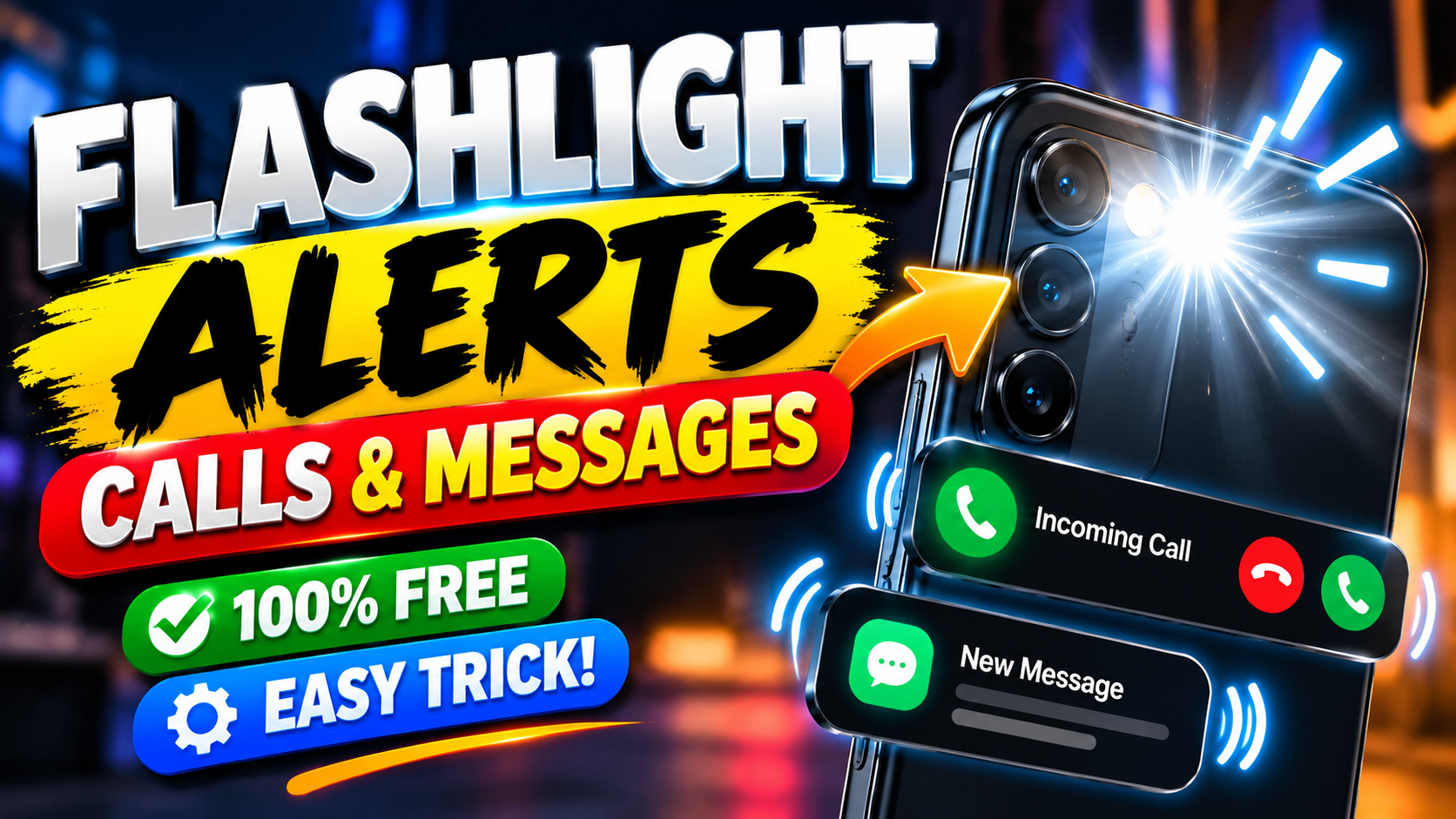
Have you ever missed an important phone call or text message because your phone was on silent mode or the ringtone was too low? If yes, enabling flashlight alerts on your smartphone can be a simple and effective solution. This useful feature makes your phone’s camera flash blink whenever you receive a call, text message, or notification, depending on your device settings.
The best part is that flashlight alerts are completely free on many smartphones, and you usually do not need to install any additional application. Whether you use an Android phone or an iPhone, you can often enable this feature in just a few steps.
In this guide, you will learn how to enable flashlight alerts for calls and messages, how to customize notification settings, and what to do if the feature is not available on your device.
What Are Flashlight Alerts for Calls and Messages?
Flashlight alerts are a smartphone accessibility feature that uses your phone’s camera flash to notify you about incoming calls and other notifications. Instead of relying only on vibration or sound, your phone flashes its light to get your attention.
For example, when someone calls you, the flashlight may blink repeatedly until you notice the incoming call. On supported devices, the flash can also blink when you receive text messages or app notifications.
This feature is especially useful for people who keep their phones on silent mode, work in noisy environments, or prefer visual notifications.
Unlike some third-party notification applications, the built-in flashlight alert feature does not normally require a subscription or payment.
Benefits of Enabling Flashlight Alerts
Before learning how to activate this feature, let’s look at some of its main benefits.
1. Never Miss Important Calls Easily
If you frequently miss calls because your phone is silent, flashlight alerts can help you notice incoming calls more quickly.
2. Useful in Noisy Environments
When you are working in a busy office, traveling, or spending time in a noisy place, the blinking flashlight can provide an additional way to notice notifications.
3. Perfect for Silent Mode
You can keep your phone on silent or vibration mode while still receiving visual alerts, depending on your phone’s settings.
4. No Extra Cost
Most phones with built-in flash notification support allow you to activate the feature without purchasing an application.
5. Helpful Accessibility Feature
Flash alerts provide an additional notification method for people who have difficulty hearing phone sounds.
How to Enable Flashlight Alerts on Android Phones
Android phones from Samsung, Xiaomi, Redmi, OPPO, Vivo, Realme, Infinix, Tecno, and other brands may offer different settings. The exact steps depend on your Android version and phone manufacturer.
Follow these steps to check whether your phone supports flashlight alerts.
Step 1: Open Your Phone Settings
Unlock your smartphone and open the Settings application. This is where you can manage accessibility, sound, notifications, and other phone features.
Step 2: Find Accessibility Settings
Scroll down and look for the Accessibility option. On some Android phones, you may find it under Additional Settings or another system settings category.
Tap Accessibility to open the available options.
Step 3: Find Flash Notifications
Look for an option called Flash Notifications, Camera Flash Notification, or a similarly named feature.
On supported Android versions, the general path is:
Settings > Accessibility > Flash Notifications
Some devices offer separate options for camera flash and screen flash.
Step 4: Turn On Camera Flash Notifications
Enable the Camera Flash option or the equivalent setting available on your phone.
If your device provides separate controls for screen flash and camera flash, select camera flash to make the physical flashlight blink.
You may also see an option to preview the flashing effect before saving your settings.
Step 5: Test Your Flashlight Alerts
Ask someone to call your phone or send you a text message. Check whether the camera flash blinks when the notification arrives.
Remember that the availability of flash alerts for calls, messages, and individual applications varies by device and operating system.
How to Enable Flashlight Alerts on Samsung Phones
Samsung Galaxy smartphones may provide flash notification controls through the accessibility settings.
Follow these general steps:
- Open Settings on your Samsung phone.
- Tap Accessibility.
- Select Advanced settings, if available.
- Look for Flash notification.
- Enable Camera flash notification.
- Enable Screen flash notification if you also want the screen to flash.
The camera flash option can help you notice incoming alerts even when your phone is placed face down or its ringtone is turned off.
Menu names may differ depending on your Samsung model and One UI version. If you cannot find the option, use the search bar inside Settings and search for “Flash notification.”
How to Enable Flashlight Alerts on iPhone
iPhones also offer an LED flash alert feature that can notify you of incoming calls and notifications.
Here is how to activate it:
- Open the Settings app.
- Select Accessibility.
- Under the Hearing section, tap Audio & Visual.
- Find the LED Flash for Alerts option.
- Turn on LED Flash for Alerts.
- Adjust any additional flash settings available on your iOS version.
Some iPhones also provide options to allow flash alerts while the device is unlocked or when it is in silent mode.
After enabling the feature, test it with an incoming call or notification to make sure it works as expected.
What If Your Android Phone Does Not Have Flash Notifications?
Some older Android phones or manufacturer-specific software versions may not include a built-in camera flash notification feature.
If you cannot find the setting, try these solutions.
Search your Settings: Use the search bar and enter “Flash notifications,” “Camera flash,” or “Flash alert.”
Check for software updates: Open your phone’s software update settings and install any suitable official updates.
Check your phone model: Search the manufacturer’s official support information to determine whether your device supports flash alerts.
Consider a trusted third-party application: If your phone does not support the feature natively, you can investigate reputable flashlight alert applications through the official Google Play Store. Review permissions and privacy information before installing anything.
Avoid applications that request unnecessary access to contacts, messages, or other personal information. Also, remember that third-party apps may not work reliably on every phone.
Common Problems and Their Solutions
Sometimes flashlight alerts may not work as expected. Here are a few simple troubleshooting tips.
Flashlight Does Not Blink During Calls
Confirm that camera flash notifications are enabled. Then restart your phone and test the feature again.
Flashlight Works for Calls but Not Messages
Your device may support flash alerts only for certain notification types. Check your notification settings and the options provided by your phone.
Flashlight Alerts Stop Working
Check whether your phone has pending software updates. Also, review any battery-saving settings that might restrict third-party notification applications.
Flashlight Does Not Work When the Screen Is On
Some devices offer a setting that controls whether the flash works while the phone is unlocked. Check the available options and enable the behavior you prefer.
Is Enabling Flashlight Alerts Safe?
Yes, using a built-in flashlight notification feature is generally safe when used appropriately. However, repeated flashing lights can be uncomfortable or potentially trigger symptoms in people with photosensitive epilepsy.
Avoid using flashing alerts near people who may be sensitive to flashing lights. You should also remember that the camera flash consumes some battery power, particularly when alerts occur frequently.
If you receive many notifications throughout the day, consider enabling the feature only for important calls or using it when necessary.
Final Words
Enabling flashlight alerts for calls and messages is a simple way to make your smartphone notifications more noticeable. Whether you use Android or an iPhone, your device may already include this helpful feature in its accessibility settings.