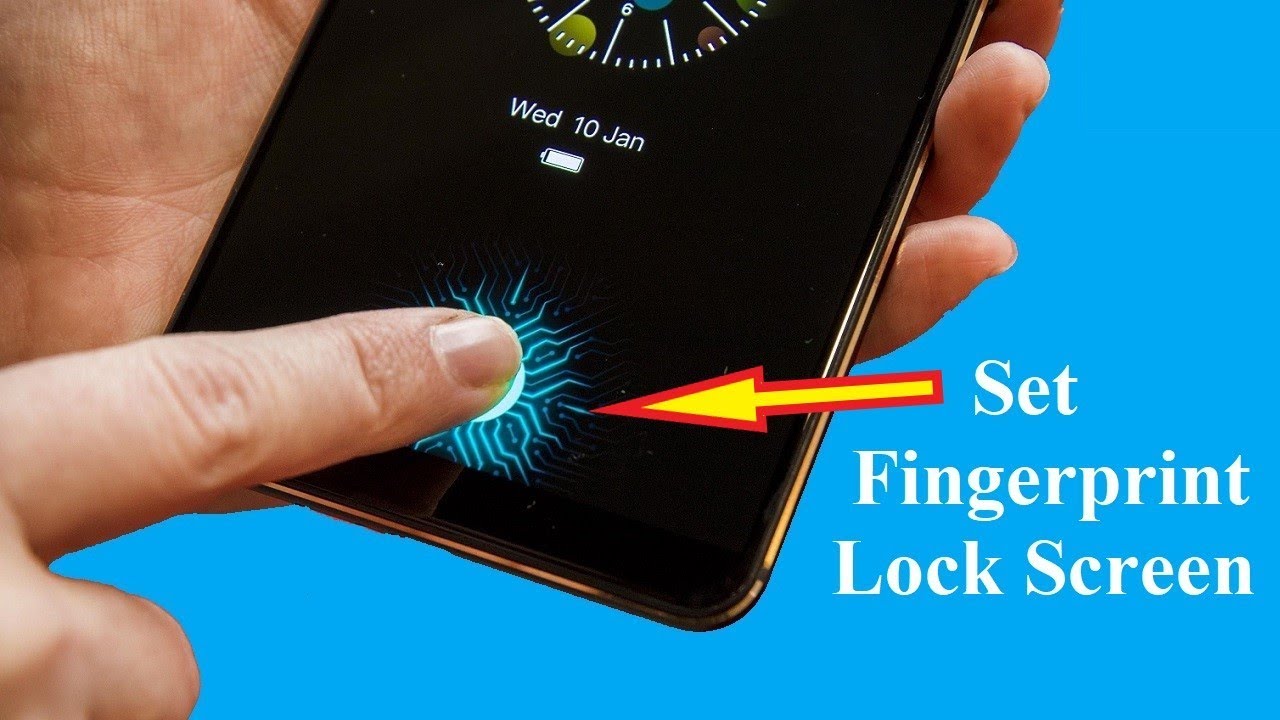
In today’s mobile-first world, smartphones are used for everything—watching videos, gaming, online learning, and even handing over to kids. But one common problem remains: accidental touches.
That’s where a Touch Lock Screen becomes extremely useful.
In this complete 2026 guide, you’ll learn multiple ways to add a touch lock feature on any Android phone—whether your device supports it or not.
🔒 What is Touch Lock Screen?
A Touch Lock Screen is a feature that disables all touch interactions on your device while keeping the screen ON.
This allows you to:
- Watch videos without interruptions
- Prevent accidental taps in pocket
- Give phone safely to kids
- Avoid unwanted clicks during screen recording
👉 Think of it as a “temporary freeze” for your screen.
📱 Why Touch Lock is Important in 2026
With modern smartphones becoming more sensitive and feature-rich, accidental touches can:
- Pause videos
- Skip important scenes
- Exit apps
- Trigger unwanted actions
Especially useful for:
- Parents 👶
- Content creators 🎥
- Students 📚
- Drivers (navigation safety) 🚗
✅ Method 1: Use Third-Party Touch Lock Apps (Best Method)
Since most Android devices still don’t provide a native touch lock, apps are the most reliable solution.
🔹 Step-by-Step Installation Guide
- Open Google Play Store
- Search:
- Touch Lock
- Touch Blocker
- Screen Lock Touch
- Choose a high-rated app
- Install and open it
- Grant permissions:
- Accessibility access
- Display over apps
- Enable the touch lock toggle
🔹 How It Works
- Tap the floating lock icon OR notification toggle
- Screen becomes touch-disabled
- Unlock using:
- Volume button
- Double tap
- PIN code
⭐ Best Features to Look For (Very Important)
When choosing an app, make sure it includes:
- ✔ One-tap activation
- ✔ Volume key unlock
- ✔ PIN protection
- ✔ Minimal ads
- ✔ Low battery usage
- ✔ Works in background
⚠️ Common Mistakes to Avoid
- ❌ Not granting permissions → App won’t work
- ❌ Using unknown apps → Security risk
- ❌ Forgetting unlock method
🔐 Method 2: Use Android Screen Pinning (Built-in Feature)
If you don’t want to install apps, Android offers Screen Pinning as an alternative.
🔹 Enable Screen Pinning
- Open Settings
- Go to Security & Privacy
- Tap Screen Pinning
- Turn it ON
🔹 How to Use It
- Open any app (e.g., YouTube)
- Tap Recent Apps button
- Tap Pin icon
- App will be locked
👉 To unpin:
- Hold Back + Recent buttons together
📌 Limitations
- Does NOT fully disable touch
- Only locks user inside one app
- Buttons may still work
👉 Good for basic usage, but not perfect
⚙️ Method 3: Guided Access Style Apps (Advanced Control)
Some apps provide advanced touch control, similar to iPhone’s Guided Access.
🔹 What You Can Do:
- Disable specific screen areas
- Block navigation buttons
- Lock gestures
- Restrict app switching
🔹 Use Cases:
- Kids watching cartoons
- Gaming without interruptions
- Secure app demos
📲 Method 4: Built-in Features (Brand-Specific)
Some Android brands already include hidden touch lock tools.
🔹 Samsung (One UI)
- Kids Mode
- Touch Block during videos
🔹 Xiaomi / Redmi (MIUI)
- Video Toolbox
- Touch Lock option inside video player
🔹 Realme / Oppo
- Smart Sidebar
- Screen assistant tools
🔍 How to Check:
Go to:
Settings → Special Features → Screen Tools
🔥 Method 5: Automation Apps (Pro Users Only)
Advanced users can use automation apps to create touch lock behavior.
Examples:
- Task automation apps
- Gesture-based triggers
🔹 Example Setup:
- Double tap → Activate touch lock
- Shake phone → Unlock
👉 Requires technical setup but powerful
🚀 Best Use Cases of Touch Lock
Touch Lock is not just a feature—it’s a daily life tool.
🎥 Watching Videos
No accidental pauses or skips
Perfect for YouTube & Netflix
👶 Kids Safety
Kids can’t:
- Exit apps
- Open settings
- Delete anything
🎮 Gaming
Avoid accidental touches ruining gameplay
🚗 Driving Mode
Use navigation safely without screen interruptions
🎬 Content Creators
Perfect for:
- Screen recording
- Tutorials
- Demonstrations
⚠️ Security & Privacy Tips
Always follow these precautions:
- 🔐 Use apps from trusted developers
- 🔐 Check permissions carefully
- 🔐 Avoid unnecessary access
- 🔐 Use PIN-based unlock
touch lock android 2026, disable touch screen android, touch blocker app android, screen touch lock app, android touch disable feature, best touch lock app 2026, how to lock screen touch android, guided access android alternative, prevent accidental touch android, kids screen lock android
#TouchLock #AndroidTips #MobileHacks #TechGuide #Android2026 #PhoneTricks #ScreenLock #TouchBlocker #AndroidApps #TechTutorial #YouTubeSEO #ViralTech
🎯 Final Conclusion
Adding a Touch Lock Screen on Android is no longer complicated in 2026.
✔ For best results → Use third-party apps
✔ For basic use → Screen Pinning
✔ For advanced control → Guided apps
No matter which Android phone you have, you can easily implement this feature and improve your daily smartphone experience.