How to Lock Any App with a Photo Password on Android in 2027
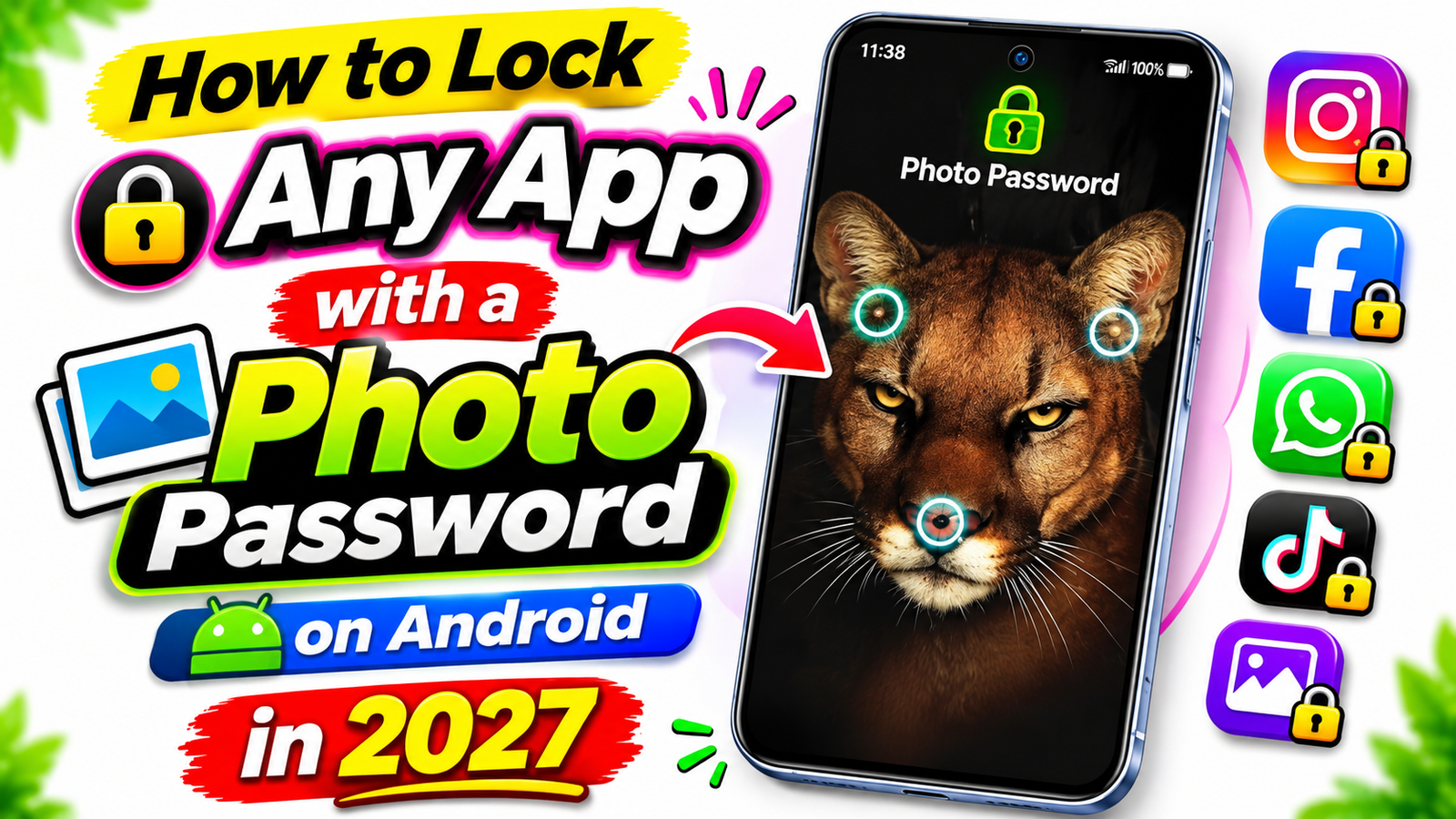
Do you want to lock your Facebook, Instagram, WhatsApp, or any other app on your Android phone in a different way? If yes, this trick can help you create a photo-based lock for your apps. Instead of showing a traditional PIN pad or pattern screen, the lock can display a photo, and you need to touch specific points on that photo to unlock the protected app. This makes the unlocking process look different from a normal app lock and gives you another way to protect your privacy when someone tries to open your personal applications.
Many people use social media apps every day to chat with friends, share photos, watch videos, and manage their personal accounts. However, not everyone wants other people to open these apps when they borrow their phone. For example, you may want to keep your Instagram messages private, protect your Facebook account, or prevent someone from reading your WhatsApp conversations. A photo-based app lock can be a useful option if you want to add an extra layer of privacy to selected applications.
The interesting part of this trick is that you can choose a photo and set specific touch points on it. When someone opens a protected app, the selected photo appears on the screen. You then need to touch the correct points in the correct way to unlock the app. These points can be placed on different parts of the image, depending on the features provided by the app you use. Someone looking at the screen may simply think that you are viewing a normal photo, although the image is actually part of the unlocking process.
You can use this method for applications such as Instagram, Facebook, WhatsApp, and other compatible apps installed on your Android phone. For example, if you want to protect Instagram, you can select Instagram in the photo-lock application and configure the unlocking points. The next time you open Instagram, the lock screen may display your selected photo before allowing access. You can follow the same process for other supported applications, depending on the app-lock tool and its permissions.
Another useful thing is that you can choose a photo that you like. It could be a picture from your gallery or another suitable image supported by the app. You then configure the touch points that act as your unlocking method. Try to select points that you can remember easily but that other people are unlikely to guess. Avoid using an image with obvious points that someone could identify immediately, especially if you want to keep your personal applications private.
Setting up this type of lock is generally straightforward when you use a compatible application. You install the app-lock tool, open it, select the photo-lock feature, choose your image, and configure the required touch points. After that, select the applications you want to protect and complete the setup. The exact options may differ depending on the application, Android version, and device settings, so follow the instructions shown on your screen.
Before using any third-party app-lock application, check its permissions, reviews, developer information, and privacy policy. Some app-lock tools need accessibility access or other permissions to protect applications properly. Only grant permissions you understand and trust. Also, remember that a photo-based lock is an additional privacy measure, not a guarantee that your information is completely secure. Keep your phone’s screen lock enabled and use strong account passwords to protect your personal data.
In this guide, you will learn how a photo-based app lock works, how to set it up on your Android phone, and how to use it to protect compatible applications such as Facebook, Instagram, and WhatsApp. If you want a different way to secure your apps instead of using only a traditional PIN or pattern, this method is worth exploring.
How to Set Up a Photo Password for Your Apps
- Install a Photo Lock App: First, find a compatible photo-lock application for your Android phone. Check its ratings, reviews, developer information, and permissions before installing it.
- Open the App and Create a Photo Code: After installing the application, open it and look for an option such as Create Photo Code. Tap this option to begin setting up your photo-based unlocking method.
- Select a Photo from Your Gallery: Choose a suitable picture from your phone gallery. Select an image that is easy for you to recognize so you can remember which picture you selected for your app lock.
- Set the Secret Touch Points: Select the specific areas of your photo that will work as your unlocking points. Remember their positions and follow the app’s instructions to complete the photo-code setup.
- Choose the Apps You Want to Lock: Once your photo code is ready, select the applications you want to protect from the list provided by the app-lock tool. The available options may differ depending on your phone and the application.
- Set Up a Photo Lock for Instagram: If Instagram is supported, select it from the app list and enable the lock. Open Instagram afterward to check whether the photo-lock screen appears before you can access the application.
- Protect Facebook and WhatsApp: You can select Facebook, WhatsApp, or other compatible applications if you want additional privacy. Test each protected app after setup to confirm that the lock works as expected.
- Test Your Photo Password: Open a protected application and try unlocking it using your selected touch points. Make sure you remember the correct locations and order so you do not accidentally lock yourself out.
- Check App Permissions and Settings: Some third-party app-lock tools require special permissions to work properly. Review each permission carefully and only allow access that you understand and trust.
- Keep Your Personal Apps Secure: A photo-based lock can provide an additional layer of privacy, but it should not replace your phone’s screen lock or strong account passwords. Keep your Android phone updated and use the built-in security features available on your device.
Tips to Use a Photo Password App Lock Safely
After setting up a photo password for your Android apps, it is important to make sure the lock works correctly and does not create problems when you use your phone. A few simple precautions can help you get a better experience while keeping your personal information more secure.
Choose a Reliable App Lock Application
Before using any photo password app, check its ratings, reviews, update history, and developer details on the Google Play Store. Read recent reviews to see whether other users have reported problems such as frequent crashes, advertisements, or unexpected permission requests. Avoid installing unknown APK files from untrusted websites because they may contain harmful software or put your personal information at risk.
Create a Photo Password You Can Remember
Choose a photo that is easy for you to recognize. When setting touch points, avoid selecting locations that are too close together or difficult to remember. Follow the application’s instructions carefully and test the unlocking method several times before relying on it. If the application provides a backup PIN or another recovery option, consider setting it up so you have an alternative if you forget your photo pattern.
Do Not Depend on One Security Feature
A photo password app lock is an additional privacy feature, not a replacement for your Android phone’s built-in security. Use a strong screen lock, such as a PIN or password, and enable fingerprint unlocking if your device supports it. This helps protect your phone if it is lost or accessed by someone else.
You should also protect important online accounts with strong, unique passwords and two-factor authentication where available. An app lock may restrict access to an application on your phone, but it does not automatically protect your account if someone already knows your login details.
Review Permissions Carefully
Some third-party app-lock applications request special access to detect when another application opens or display a lock screen over it. The exact permissions depend on the app and your Android version. Before granting access, read the explanation provided by the developer and decide whether the permission is necessary.
Be particularly careful if an app requests access to your contacts, messages, photos, microphone, or other personal information without a clear reason. If you are uncomfortable with its permissions or privacy policy, choose another application or use your phone’s built-in app-lock feature if one is available.
What to Do If the Photo Lock Does Not Work
Sometimes a photo password app lock may stop working after an Android update, a change in permissions, or a battery optimization setting. If the lock does not appear when you open a protected application, first open the app-lock tool and check whether the selected application is still enabled.
Next, review the permissions and settings required by the tool. You can also restart your phone and check whether an update is available. Menu names and troubleshooting steps may differ between Android devices, so follow the instructions for your specific application.
Avoid immediately uninstalling the app-lock tool if you are unsure how it handles its settings or recovery options. Check its official instructions first, especially if you might lose access to a recovery method.
Can You Use a Photo Password on Every Android Phone?
Not necessarily. The availability of photo-based app locking depends on the application, Android version, and phone manufacturer. Some phones include built-in features such as App Lock or Private Space, while others may require a compatible third-party tool. The names and available options vary by device.
Before installing an additional application, check your phone’s Settings menu for a built-in privacy or app-lock feature. A built-in option may be a simpler choice because it does not require installing another app.
More Ways to Protect Apps with a Photo Password
Using a photo password is one way to add an extra layer of privacy to your Android phone. However, before choosing an app-lock method, it is helpful to understand how it works, what features to look for, and how to make sure it meets your needs.
Keep Your Photo Password Private
When you create a photo password, choose touch points that are easy for you to remember but not immediately obvious to someone watching you unlock your phone. Avoid showing your unlocking method to other people, especially if you use the same phone to access private messages, social media accounts, or personal files.
It is also a good idea to test your photo password regularly. This can help you remember the correct touch points and identify any problems before you need to access an important application.
Protect Your Privacy When Sharing Your Phone
If you sometimes lend your Android phone to friends or family members, an app lock may help prevent accidental access to selected applications. For example, you may want to keep your messaging apps, social media accounts, or personal photographs private while allowing someone to use other features of your phone.
Keep in mind that an app lock only protects the applications it supports and has been configured to lock. It does not necessarily hide notifications, protect information displayed on your screen, or prevent someone from accessing the same account through another device.
For better privacy, review your notification settings and disable sensitive message previews on the lock screen if needed.
Check Compatibility Before Installing an App
Not every photo password application works on every Android phone. Some tools may require additional permissions, while others may not support certain Android versions or applications. Before installing one, read its description and check whether it supports the features you want.
You should also review recent user feedback to see whether the app works reliably on devices similar to yours. Avoid applications that make unrealistic security promises or request permissions that do not appear necessary for their stated purpose.
If your phone already includes an App Lock feature, compare it with third-party options before installing another application. The built-in feature may provide a simpler way to protect supported apps.
Find a Photo Password App on the Google Play Store
If you want to try this type of locking method, you can look for a compatible photo password app on the Google Play Store. Before downloading it, check the app’s name, developer, available features, compatibility, and privacy information.
Choose an application that clearly explains how its photo password works and provides instructions for setting up and recovering access. Remember that the actual features may vary depending on the app and your Android device.
Photo Password App for Android
You can check out the photo password app on the Google Play Store using the link below. Open the listing to review its features and installation details before downloading it to your device.
Once you open the Play Store link, read the app description and confirm that it supports your phone before installing it. After installation, follow the instructions provided by the developer to set up the photo password and protect the applications you want to keep private.
Conclusion
Locking your Android apps with a photo password can be a useful way to add an extra layer of privacy to your phone. Instead of relying only on a traditional PIN or pattern, some photo-lock applications let you select a picture and use specific touch points as your unlocking method. This can make app locking more interesting and convenient for users who want to protect their personal applications.
Whether you want to protect Instagram, Facebook, WhatsApp, or other supported apps, choosing a reliable app-lock tool is important. Always check the application’s compatibility, reviews, permissions, and privacy policy before installing it. Remember that features can vary depending on your Android version, phone manufacturer, and the application you choose.
For better protection, continue using your phone’s built-in screen lock and keep your Android software updated. You should also use strong passwords for your online accounts and enable additional security features whenever possible.
If you want to try a photo password locking method, check the Google Play Store link provided in this article. Review the app details carefully and follow the developer’s instructions to set it up correctly.
With the right precautions, you can make your Android experience more private while keeping your favorite apps accessible whenever you need them.
Frequently Asked Questions About Photo Password App Lock
- Can I Lock Android Apps with a Photo Password? Yes, some third-party Android applications offer photo-based locking features. These apps allow you to select a picture and set specific touch points to unlock supported applications. The available features depend on the app and your Android device.
- Can I Use a Photo Password to Lock WhatsApp and Instagram? Some photo password app-lock tools support applications such as WhatsApp and Instagram. However, compatibility varies depending on the locking app, Android version, and device settings. Check the app description before installing it.
- Are Photo Password App Lock Applications Free? Some photo password app-lock applications are available for free, while others offer paid features or in-app purchases. Check the Google Play Store listing to understand the available features, advertisements, and possible costs before downloading an app.
- Is a Photo Password App Lock Safe to Use? A photo password app lock may provide additional privacy, but its safety depends on the application and the permissions it requires. Check its developer information, reviews, and privacy policy before installing it. Continue using your phone’s built-in screen lock for better overall protection.