Android Pop-Up Ads Removal Guide 2027: How to Detect Adware and Stop Unwanted Ads
Pop-up ads on Android phones can be frustrating, especially when they appear unexpectedly while browsing the internet, using social media, playing games, or even when the phone is sitting idle. These unwanted advertisements can interrupt your activities, make your device feel slower, and sometimes redirect you to unfamiliar websites. If you are experiencing this problem, the first step is to identify where the ads are coming from rather than installing random apps that promise to block every advertisement. In many cases, pop-up ads are caused by browser notifications, recently installed applications, suspicious permissions, or adware that displays advertisements without your clear consent. Understanding the source of these ads can help you remove them safely and prevent them from returning. Android includes several built-in security and privacy features that can help you investigate suspicious behavior without paying for additional software. For example, Google Chrome allows you to manage website notifications and block certain types of intrusive pop-ups, while Google Play Protect can scan installed applications for potentially harmful behavior. However, it is important to understand that not every advertisement is a sign of malware. Free games, utility apps, and other services may display advertisements as part of their normal business model, while some websites use notifications to send promotional messages after a visitor grants permission. The problem becomes more concerning when advertisements appear over other apps, redirect your browser repeatedly, or continue showing after you have closed your browser. These symptoms may indicate that an installed application is responsible. To investigate the issue, think about when the advertisements first started appearing and whether you recently installed a new app, downloaded an APK file from an unfamiliar website, or allowed notifications from a website you do not recognize. This information can help narrow down the possible cause. You should also avoid tapping suspicious advertisements that claim your phone is infected, your device needs an urgent security update, or you have won a prize. Such messages can be misleading and may encourage you to download unwanted software or share personal information. Instead, use your phone’s official settings and trusted security tools to investigate the problem. Keeping Android, Chrome, and your installed applications updated can also help reduce security risks. If you suspect that an application is responsible, review its permissions and uninstall it if you no longer trust it or need it. Be careful when changing system settings, because disabling essential services or removing unfamiliar system components can affect your phone’s normal operation. You should also remember that a VPN or an ordinary ad blocker cannot automatically remove every type of pop-up ad, particularly advertisements generated by another installed application. The most effective solution depends on the source of the unwanted advertisements. By checking browser settings, reviewing recently installed applications, using Google Play Protect, and avoiding untrusted downloads, you can take practical steps toward a cleaner and safer Android experience. In this guide, you will learn how to identify the applications and browser settings responsible for unwanted pop-ups, stop intrusive notifications, check for potentially harmful software, and improve your phone’s security without relying on expensive tools or risky downloads.
How to Identify the Source of Pop-Up Ads on Android
Before trying to remove pop-up ads from your Android phone, it is important to identify where they are coming from. These advertisements may originate from your web browser, installed applications, website notifications, or potentially unwanted software. Understanding the source can help you choose the right solution without installing unnecessary applications or changing important system settings.
Pay attention to when the advertisements appear and what you were doing immediately before they showed up. If the problem started after installing a new application, that app may be worth investigating. You can review your installed applications through your phone’s Settings menu and look for unfamiliar apps or programs you no longer use. If advertisements appear only while browsing a particular website, your browser settings or website notification permissions may be responsible.
However, if advertisements appear on your home screen or over other applications, you should investigate recently installed apps and their permissions. Avoid tapping suspicious advertisements that claim your phone is infected or require an urgent security update. Such messages may attempt to trick you into downloading unwanted software or sharing personal information. Once you have identified the likely source, you can use the appropriate troubleshooting method to stop unwanted advertisements safely.
How to Identify the Source of Pop-Up Ads on Android
- Check When Pop-Up Ads Appear: Pay attention to when advertisements appear on your Android phone. If they show up while browsing a particular website, your browser settings may be responsible. However, if ads appear on your home screen or while using other applications, an installed app could be the cause.
- Review Recently Installed Apps: Open your phone’s Settings and check your installed applications. Look for unfamiliar apps or programs you recently installed before the pop-up ads started appearing. If you find a suspicious application that you no longer trust, consider uninstalling it after verifying that it is not an essential system app.
- Check Browser Notification Permissions: Open Google Chrome and navigate to Site Settings, then select Notifications. Review the websites allowed to send notifications and remove permission from unfamiliar or untrusted websites that may be sending unwanted advertisements.
- Review Apps With Special Permissions: Open your Android phone’s Settings and look for permissions such as Display Over Other Apps. Check which applications have this access and disable it for apps that do not need it. This can help you investigate applications that display advertisements over other apps.
- Scan Your Phone for Potentially Harmful Apps: Open the Google Play Store, tap your profile icon, and select Play Protect to scan your installed applications. If a potential security threat is detected, follow the recommended instructions to investigate or remove it. Keep in mind that no security scan can guarantee detection of every unwanted application.
- Check for Suspicious Browser Redirects: Pay attention to whether your Android phone automatically opens unfamiliar websites or redirects you to unexpected pages while browsing. These redirects may be caused by intrusive advertisements, suspicious website permissions, or an unwanted application. Avoid clicking unfamiliar links and review your browser settings to identify and block suspicious activity.
How to Block Pop-Up Ads in Google Chrome
Google Chrome offers built-in security settings that help Android users block unwanted pop-up advertisements, suspicious redirects, and intrusive website notifications. These settings can make browsing safer and more comfortable by reducing interruptions caused by certain websites. To get started, open Chrome on your Android phone, tap the three-dot menu, and select Settings. From there, navigate to Site Settings to review the available controls for pop-ups, redirects, and notifications. Make sure pop-ups and redirects are blocked, and remove notification permissions from websites that you do not recognize or trust. You should also review your browsing experience and avoid clicking suspicious advertisements or unfamiliar links that may lead to unsafe websites. Keep in mind that Chrome’s built-in protections mainly address browser-related advertisements. If pop-ups continue appearing on your home screen or while using other applications, the problem may be caused by an installed app rather than Chrome. In that situation, review recently installed applications and investigate any suspicious software to help identify the actual source of the unwanted ads.
Step-by-Step Guide to Blocking Pop-Up Ads on Android and iPhone
Unwanted pop-up advertisements can interrupt your browsing experience, open suspicious websites, and make it difficult to use your phone comfortably. Fortunately, both Android and iPhone offer built-in browser settings that can help you block many of these advertisements. The exact steps may vary depending on your device model, operating system version, and browser, but the following methods will help you find and adjust the most important settings.
How to Block Pop-Up Ads on Android Phones
If you use an Android phone, such as a Samsung Galaxy, Google Pixel, Xiaomi, Redmi, Vivo, Oppo, or Tecno device, you can start by checking the pop-up settings in Google Chrome. First, open the Chrome app on your phone. Tap the three-dot menu in the upper-right corner and select Settings. Scroll down until you find Site Settings, then open the Pop-ups and redirects option. Make sure the setting is turned off so Chrome can block websites from displaying many unwanted pop-ups and redirecting you to unexpected pages. Keep in mind that menu names and locations can vary slightly between Chrome versions.
Next, return to the Site Settings menu and select Notifications. Here, you can review the websites that have permission to send notifications to your phone. If you notice unfamiliar websites or pages that frequently send unwanted advertisements, open the relevant website entry and block its notifications. You can also review additional permissions, such as intrusive ads, if those options are available in your Chrome version. These changes can reduce browser-based advertising, although they will not necessarily stop advertisements generated by other applications.
If advertisements continue appearing outside Chrome, open your Android phone’s Settings app and select Apps. Review your installed applications and look for unfamiliar apps or programs you installed shortly before the ads started appearing. If you identify an application you do not trust and do not need, uninstall it. You can also search Settings for Display Over Other Apps or Appear on Top and review which applications have permission to display content over other apps. Disable this permission for applications that do not require it. Finally, open the Google Play Store, tap your profile picture, select Play Protect, and run a security scan. This can help identify certain potentially harmful applications, although no scan can guarantee that every unwanted app will be detected.
How to Block Pop-Up Ads on iPhone
If you use an iPhone, you can adjust Safari settings to reduce unwanted pop-ups while browsing websites. Open the Settings app on your iPhone and scroll down to Apps. Select Safari. On some older iOS versions, Safari may appear directly on the main Settings screen. Find the Block Pop-ups option and turn it on. This setting helps prevent many websites from opening unwanted pop-up windows while you browse. You should also make sure that Fraudulent Website Warning is enabled, if available, to receive warnings about websites suspected of being deceptive.
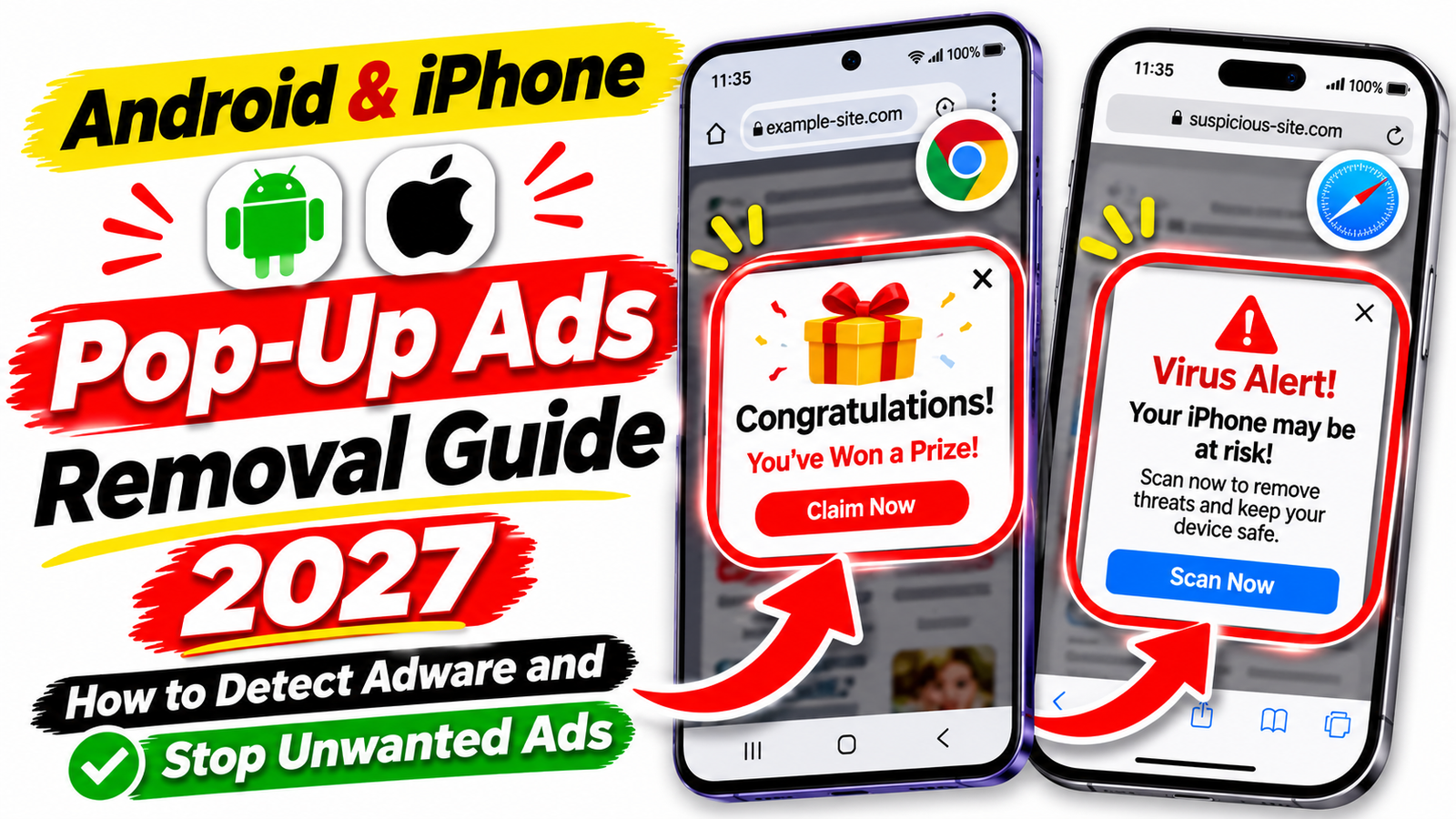
After changing these settings, open Safari and test whether the unwanted pop-ups have stopped. If a website continues displaying suspicious advertisements, avoid tapping the advertisement or interacting with unfamiliar buttons. Some deceptive pop-ups pretend that your iPhone has a virus or claim that you have won a prize. These messages are not reliable evidence that your device is infected. Close the affected tab if possible and avoid installing applications or configuration profiles promoted through suspicious pages.
If you use Google Chrome on your iPhone instead of Safari, open Chrome, tap the three-dot menu, and select Settings. Look for Content Settings or the pop-up blocking option, depending on your version, and enable the available protection against pop-ups. The exact menu structure may differ between app versions. Also, review website notification and privacy settings where available. Unlike Android, iOS generally restricts applications from displaying arbitrary content over other apps in the same way, so persistent advertisements appearing across your iPhone may have a different cause, such as browser activity, website notifications, calendar spam, or a suspicious configuration profile.
What to Do If Pop-Up Ads Still Appear
If you have followed these steps and advertisements continue appearing, identify where they originate before making additional changes. Pop-ups that appear only on particular websites are often related to website advertising or browser permissions. Ads that open unfamiliar pages may be connected to redirects or deceptive links. On Android, advertisements appearing over the home screen or other applications may indicate an unwanted app. On an iPhone, unexpected calendar events or alerts may be caused by an unwanted calendar subscription rather than a virus.
Keep your operating system and browser updated, remove unnecessary applications, and avoid downloading unknown APK files or installing untrusted profiles. You should also avoid third-party tools that promise to remove every advertisement but request unnecessary permissions. Blocking browser pop-ups can significantly reduce interruptions, but it cannot eliminate every form of advertising across the entire device. Identifying the actual source of the ads is the most effective way to choose the correct solution and maintain a safer browsing experience.
Best Ad Blocker App for Android
If you want to block unwanted pop-up ads on your Android phone, you can try the genuine ad-blocking app linked below. It can help reduce intrusive advertisements and provide a smoother browsing experience. Download it from the official Google Play Store and check its features and permissions before installing.
Conclusion
Unwanted pop-up ads can make using your Android phone frustrating, but you can reduce them by adjusting browser settings, blocking unwanted website notifications, and removing suspicious applications. Use Google Play Protect to scan for potentially harmful apps and consider a trusted ad blocker for additional protection. iPhone users can enable Safari’s built-in pop-up blocking to improve their browsing experience.
To prevent future problems, keep your phone updated, avoid downloading apps from untrusted sources, and never click suspicious advertisements. Although no method blocks every ad, following these simple steps can help you enjoy a safer and smoother mobile experience in 2027.
Frequently Asked Questions About Android Pop-Up Ads
- Why do pop-up ads keep appearing on Android? Pop-up ads may appear because of website notifications, intrusive advertisements, or suspicious applications installed on your phone.
- How can I stop pop-up ads on Android? Block pop-ups in Chrome settings, disable unwanted website notifications, and remove suspicious applications.
- Can pop-up ads harm my phone? Most advertisements are simply promotional, but some may lead to malicious websites or deceptive downloads.
- How do I block pop-up ads in Chrome? Open Chrome Settings, select Site Settings, tap Pop-ups and redirects, and turn off the option.
- Why do ads appear on my home screen? An installed application with advertising features or special permissions may be responsible.
- Can Google Play Protect remove adware? Google Play Protect can detect certain harmful applications and guide you through recommended security actions.
- Are ad blocker apps safe to use? Reputable ad blockers can help reduce unwanted advertisements, but always verify the developer and review app permissions before installing.
- How do I block pop-up ads on iPhone? Open Settings, select Apps, tap Safari, and enable Block Pop-ups.
- Do pop-up ads mean my phone has a virus? No, pop-up ads do not automatically mean your phone is infected, although persistent suspicious ads may require further investigation.
- How can I prevent pop-up ads in the future? Keep your phone updated, avoid untrusted downloads, block suspicious notifications, and install applications only from reliable sources.