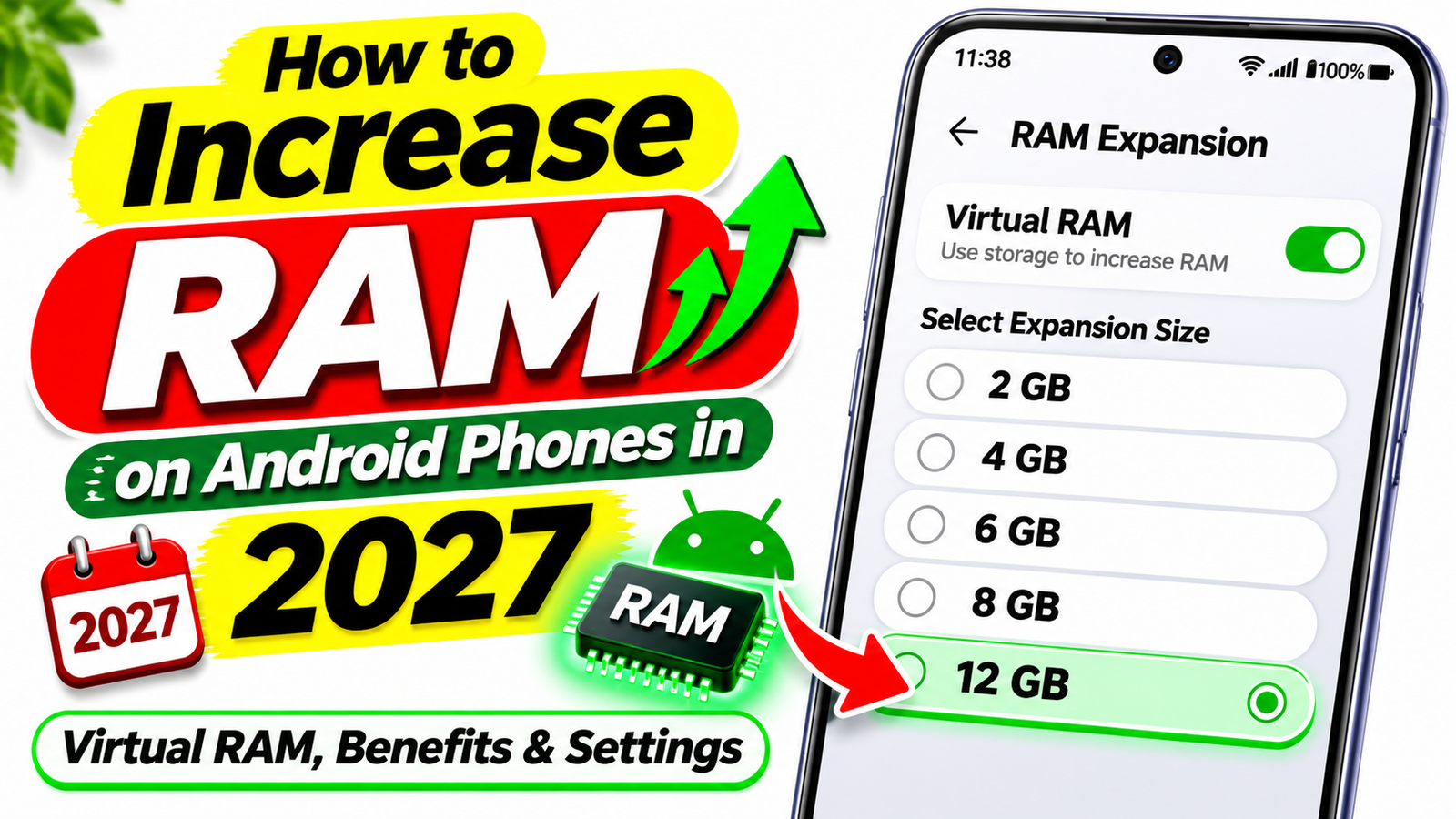
How to Increase RAM on Android Phones in 2027: Virtual RAM, Benefits & Settings
Is your Android phone becoming slow when you open multiple apps? Does your phone take longer to switch between apps, or do you notice that apps keep restarting whenever you open them again? These problems are quite common, especially on smartphones with limited memory or several apps running in the background. The good news is that there are a few ways to manage your phone’s memory more effectively, and some Android smartphones also include a feature that allows you to use a portion of your internal storage as Virtual RAM.
RAM plays an important role in the overall performance of your smartphone. Whether you are browsing the internet, watching YouTube videos, chatting on WhatsApp, scrolling through Instagram or playing games, your phone uses RAM to manage active apps and their processes. When sufficient memory is available, switching between apps can feel smooth because Android can keep more of their data ready in the background. However, when available memory becomes limited, the operating system may close background apps to free up resources. As a result, you might notice apps reloading more frequently or multitasking becoming less convenient.
Many smartphone users believe that increasing RAM automatically makes a phone faster, but the reality is a little different. RAM is only one part of the performance equation. Your phone’s processor, internal storage speed, operating system, app optimisation and available storage space also influence how smoothly it works. A smartphone with limited RAM can still provide a decent everyday experience when its software is well optimised, while a device with more memory can feel slow because of poorly optimised apps, overheating or insufficient free storage.
In 2027, Virtual RAM continues to be a feature worth understanding if your Android phone supports it. Depending on the manufacturer, you might find it under names such as RAM Expansion, Extended RAM, Memory Extension or Virtual RAM. Although the names are different, these features generally aim to provide additional memory support by using a portion of internal storage. Before enabling this option, however, you should understand what it actually does, how to find it in your phone’s settings and whether it can make a noticeable difference in your everyday usage.
What Is RAM and Why Does Your Phone Need It?
RAM stands for Random Access Memory. It is the temporary working memory your smartphone uses while running applications, handling system processes and managing different activities. You can think of it as the working space your phone needs to keep things ready while you use them. When you open an app, Android loads the necessary data into memory so that the app can operate. When you switch to another application, the system may keep the previous app in memory so you can return to it without starting from the beginning.
For example, imagine that you are watching a YouTube video and receive a WhatsApp message. You switch to WhatsApp to reply, then open Chrome to search for something before returning to YouTube. If enough memory is available, your phone may keep these apps ready in the background. However, if memory is limited, Android may remove some background processes to make room for the apps you are currently using. When you return to an app that has been closed, it may need to reload its content. This behaviour is normal and does not necessarily mean your smartphone is damaged.
The amount of RAM your phone needs depends on how you use it. Someone who mainly makes calls, sends messages and browses websites may not need as much memory as someone who regularly edits videos, plays demanding games or switches between many applications. Modern apps and operating systems can also require more resources than older versions, so a phone that once felt fast may become less comfortable to use as software becomes more demanding.
However, buying a smartphone with more RAM is not always the only solution to slow performance. If your phone has enough memory but still struggles with basic tasks, the problem could be related to storage space, background applications, software bugs or an older processor. Understanding the actual cause is important because it helps you choose the right solution instead of relying on a feature that might not address the problem.
Can You Really Increase RAM on an Android Phone?
The short answer is that you generally cannot physically increase the built-in RAM of a modern Android smartphone through its settings. Physical RAM is installed as part of the phone’s hardware, and upgrading it is not a practical option for most users. Installing an application that claims to add several gigabytes of real RAM will not change the amount of physical memory inside your device.
However, some smartphones provide a built-in Virtual RAM feature that uses a portion of internal storage to support memory management. This is why you might see advertisements or phone specifications mentioning a combination of physical RAM and extended memory. For example, a phone with 4GB of physical RAM might offer an additional 4GB of Virtual RAM. The manufacturer may describe this as up to 8GB of combined memory, but it does not mean the phone has 8GB of physical RAM.
The difference matters because physical RAM and internal storage work differently. Physical RAM is designed for fast access to data that applications and the operating system need while running. Internal storage is primarily designed to store files, photos, videos, applications and other data over a longer period. Although storage can be used to support memory management, it is generally much slower than physical RAM. Therefore, Virtual RAM cannot deliver the same performance as adding more physical memory to a device.
Even so, Virtual RAM may help in some situations. Depending on how the manufacturer implements the feature, it can provide additional support when the phone experiences memory pressure. This may help the operating system manage certain background tasks, but it does not guarantee that every app will remain open or that the phone will become noticeably faster. The results depend on your device, the available storage, the software implementation and the applications you use.
It is also important to understand that Virtual RAM does not directly improve your processor’s speed, increase your phone’s graphics performance or guarantee higher gaming frame rates. If a game is demanding more processing power than your phone can provide, enabling Virtual RAM will not turn your device into a gaming phone. Similarly, if your phone is slow because its internal storage is almost full or its processor is struggling, you may need to address those issues separately.
What Is Virtual RAM on Android?
Virtual RAM is a memory management feature available on selected Android smartphones. Different manufacturers use different names for it, including RAM Expansion, Extended RAM, Memory Extension and similar terms. The exact technology and implementation can vary between devices, but the general idea is to use a portion of internal storage to provide additional support when managing memory.
Think of physical RAM as a working desk and internal storage as a cupboard. Your desk allows you to work with items quickly, while the cupboard gives you additional space to keep things when you do not need them immediately. The cupboard cannot replace the desk because accessing something stored there takes more time. In a similar way, Virtual RAM can support memory management, but it cannot perform exactly like physical RAM.
When you enable this feature, your phone may reserve or use some internal storage for memory-related operations. The amount available depends on the manufacturer’s implementation and the phone model. Some devices allow you to select an amount of extended memory, while others enable the feature through a simple switch. Certain phones may also require a restart before the setting takes effect.
The benefit is not necessarily that apps will open faster. Instead, the feature may help in situations where the phone needs additional support to manage background activity. For instance, if you frequently switch between messaging apps, a browser and other everyday applications, Virtual RAM might help in some circumstances. However, the operating system still decides how to allocate memory, and the feature cannot guarantee that all recently opened applications will remain active.
There are also situations where enabling Virtual RAM makes little or no noticeable difference. If your smartphone already has enough physical memory for your daily tasks, you may not see any meaningful improvement. Likewise, if your phone has very slow internal storage, the benefits may be limited. This is why you should treat Virtual RAM as an optional memory management feature rather than a guaranteed performance upgrade.
How to Check Whether Your Phone Supports Virtual RAM
Before trying to enable Virtual RAM, check whether your Android smartphone includes the feature. Open the Settings app and look for a memory-related option. Depending on your phone’s brand, the setting might be available under Special Features, Additional Settings, System, Device Care or another section related to performance and memory. There is no single menu path that works for every Android phone because manufacturers organise their settings differently.
The easiest method is to use the search bar at the top of Settings. Search for terms such as Virtual RAM, RAM Expansion, Extended RAM or Memory Extension. If your device supports the feature and the relevant option is indexed by the settings search, it may appear in the results. Open it and read the information provided by your phone before changing anything.
Some smartphones allow you to choose how much additional storage to use for memory support, while others provide only an on-and-off switch. You may also see different amounts depending on your phone’s physical RAM and available storage. Keep in mind that the maximum amount advertised by the manufacturer does not represent the same amount of physical RAM.
If you cannot find the setting, it does not necessarily mean something is wrong with your phone. The feature may not be available for your particular model, or your current software version may not include it. In that case, check the official support information for your device instead of downloading an unknown application that claims to unlock hidden RAM.
You should also be careful with third-party apps that promise to increase your phone’s RAM instantly. An ordinary application cannot physically upgrade your device’s memory, and apps that make unrealistic performance claims may not provide the results they advertise. For the safest approach, use the memory features already provided by your smartphone manufacturer and focus on keeping your device’s software and storage in good condition.
What You Will Learn in This Part
In this part of the guide, we will explain how to enable Virtual RAM on Android phones, where to find memory expansion settings on different smartphone brands, how to choose the right Virtual RAM setting for your device, whether Virtual RAM can improve gaming performance, and what other methods you can use to make your Android phone run more smoothly in 2027.
- How to Enable Virtual RAM on Android Phones: Learn how to find Virtual RAM or Memory Expansion settings on supported Android devices and enable the feature using your phone’s built-in settings.
- Virtual RAM Settings for Different Smartphone Brands: Understand where to look for memory expansion features on Samsung, Xiaomi, Redmi, POCO, realme, OPPO, vivo, Infinix and TECNO smartphones, depending on the model and software version.
- How Much Virtual RAM Should You Enable? Discover what to consider when choosing a memory expansion setting, why selecting the maximum amount does not always improve performance, and how your phone’s available storage can affect the experience.
- Does Virtual RAM Improve Gaming Performance? Understand how Virtual RAM affects memory management during gaming, why it cannot directly increase processor power or graphics performance, and which other factors can cause lag.
- How to Improve Android Phone Performance in 2027: Explore practical ways to manage background apps, maintain sufficient free storage, reduce unnecessary resource usage and improve your phone’s everyday performance without relying entirely on Virtual RAM.
How to Enable Virtual RAM on Android Phones
Once you have confirmed that your smartphone supports Virtual RAM, the next step is to enable it through your phone’s settings. The exact process depends on the manufacturer and software version, but the general method is quite similar on many Android devices. Open Settings and use the search bar to look for Virtual RAM, RAM Expansion, Extended RAM or Memory Extension. If the option appears, open it and check the available settings. Some phones provide a simple toggle, while others allow you to select how much internal storage can be used for memory expansion. Choose an available option according to your phone’s requirements and follow any instructions displayed on the screen.
On certain smartphones, you may need to restart the device before the change takes effect. If your phone asks you to restart, save your work and restart it when convenient. After restarting, you can return to the same settings page to check whether the feature is enabled. Remember that the available options can vary significantly between models, so do not worry if your phone’s settings look different from those shown in an online tutorial. Always follow the instructions provided for your specific device rather than assuming that every Android phone uses the same menu.
How to Increase RAM on Samsung Phones
Samsung smartphones that support this feature may offer an option called RAM Plus. It uses a portion of internal storage to support memory management and is available on selected Galaxy devices. To check whether your phone supports it, open Settings and look for Device Care or Battery and Device Care, depending on your software version. From there, check the Memory section or search directly for RAM Plus using the Settings search bar. If the option is available, open it and review the available memory expansion settings.
The available choices may differ depending on your Galaxy model and software version. After selecting your preferred option, follow the on-screen instructions. Some devices may require a restart before the updated setting becomes active. Keep in mind that RAM Plus does not physically upgrade your Samsung phone’s RAM, and the improvement may be limited if your device already has enough memory for your daily activities. If your phone is still slow, check available storage space, update your software and review apps that consume excessive resources before assuming that RAM is the only problem.
How to Increase RAM on Xiaomi, Redmi and POCO Phones
Xiaomi, Redmi and POCO smartphones may offer a memory expansion feature, depending on the device and software version. The feature may appear under names such as Memory Extension or RAM Extension. To check whether it is available, open Settings and search for Memory Extension or RAM Extension. On some devices, you may find it under Additional Settings or another system-related section. If the feature is supported, your phone should display the available options and explain how to enable it.
Before turning it on, make sure your phone has sufficient free internal storage. Virtual RAM relies on storage-based memory management, so having very little free space can create other performance problems. If your phone offers different expansion amounts, select an option supported by your device rather than assuming that the largest amount will always provide the best results. After applying the setting, restart the phone if requested and test your usual apps to see whether multitasking feels different. The results can vary depending on the phone’s hardware, storage speed and software optimisation.
How to Increase RAM on realme, OPPO and vivo Phones
Some realme, OPPO and vivo smartphones include memory expansion features designed to support multitasking. However, the name and location of the setting can vary across different models. On a supported phone, open Settings and search for terms such as RAM Expansion, Extended RAM or Memory Extension. If you find the relevant option, open it to check whether the feature can be enabled or configured. Follow the instructions shown on your phone because menu layouts and available settings may differ between software versions.
If the option is missing, check your device’s official documentation or support page before trying other methods. Not every phone from the same brand supports memory expansion, and a software update does not necessarily add the feature to every model. Once enabled, use your phone normally and observe whether apps stay available in the background more consistently. Do not expect a dramatic speed increase, especially when the main limitation is an older processor, slow storage or demanding applications.
How to Increase RAM on Infinix and TECNO Phones
Infinix and TECNO smartphones may provide memory expansion features on selected models. Depending on the device, the setting may use a name related to Memory Fusion, MemFusion or RAM expansion. To check availability, open Settings and search for these terms. You can also review sections related to Special Functions, Special Features or system memory, although the exact menu location depends on the model and software version.
If your phone offers a memory expansion option, open it and check the available settings before enabling it. Some devices may let you select an expansion amount, while others may provide a simpler control. Make sure you have sufficient free internal storage and follow any restart instructions displayed by the phone. If the setting is unavailable, avoid installing random apps that promise to unlock additional physical RAM. Instead, focus on practical improvements such as removing unnecessary apps, limiting unwanted background activity and keeping enough storage space available.
How Much Virtual RAM Should You Enable?
The best Virtual RAM setting depends on your smartphone’s hardware, available storage and everyday usage. There is no single amount that works best for every Android phone. Some users may find the default setting sufficient, while others may prefer to experiment with the available options if their device provides them. The important thing is to understand that selecting a larger amount does not automatically make your phone faster.
For example, a phone with 4GB of physical RAM might offer several Virtual RAM options. Choosing the largest available setting will not turn it into a smartphone with the same performance as a device that has more physical RAM. Storage-based memory support works differently, and the actual benefit depends on how the operating system manages memory. If you mostly use messaging apps, browse websites and watch videos, you may not notice a significant difference after changing the setting.
If you frequently switch between several applications and notice that they reload when you return to them, it may be worth testing the feature if your phone supports it. Keep the setting consistent for a while and observe your normal usage rather than relying on a single test. If you do not notice any improvement, there may be little reason to change the setting repeatedly. Your phone manufacturer’s recommended configuration is generally a sensible starting point.
Does Virtual RAM Improve Gaming Performance?
Many Android users enable Virtual RAM because they expect better gaming performance, but the results are not always what they expect. Games depend on several hardware components, including the processor, graphics processing unit, physical RAM and storage performance. Virtual RAM does not directly increase the processing power of these components, so it cannot guarantee higher frame rates or eliminate lag in demanding games.
In some situations, additional memory support may help the operating system manage background processes while a game is running. However, this does not mean that every game will load faster or run more smoothly. If your phone struggles because its processor or graphics hardware cannot handle a particular game, enabling Virtual RAM is unlikely to solve the main problem. Similarly, overheating can cause a smartphone to reduce performance to control its temperature.
For a better gaming experience, close unnecessary applications before launching a demanding game, keep sufficient storage space available and use the game’s recommended graphics settings. Avoid running several resource-intensive apps in the background while gaming. You should also keep your phone’s software updated and allow the device to cool down if it becomes excessively hot. These steps may be more useful than simply increasing the Virtual RAM amount.
How to Improve Android Phone Performance Without Upgrading RAM
Virtual RAM can help with memory management on supported Android phones, but it is not the only way to improve your smartphone’s performance. If your phone feels slow, apps take too long to open or you frequently experience delays while switching between applications, there are several practical steps you can try before installing additional software or changing your phone’s settings.
One of the first things to check is your internal storage. When your phone has very little free space, installing updates, saving files and managing app data can become difficult. Open Settings and check your available storage. If it is almost full, consider deleting duplicate photos, unnecessary videos, old downloads and files you no longer need. You can also review large files stored in your Downloads folder and remove them if they are no longer useful. Always check your files before deleting anything important. Keeping sufficient free storage can help your phone operate more comfortably, although it does not directly increase physical RAM.
Does Closing Background Apps Increase Available RAM?
Many users believe they must constantly close every background application to keep their phones fast. However, Android is designed to manage memory automatically. It can keep frequently used apps ready in the background and remove processes when additional memory is needed. Therefore, repeatedly closing every application is not always necessary and may sometimes use more resources when apps have to restart from the beginning.
Instead of force-closing everything, focus on applications that genuinely cause problems. If a particular app consumes excessive resources, freezes frequently or continues running unwanted background activities, open Settings, go to Apps, select that application and review its available options. Depending on your Android version, you may be able to restrict certain background activities or clear the app’s cache. Be careful when clearing app data because doing so can remove local settings, downloaded content or saved information.
You should also uninstall applications you no longer use. Some apps may run background services, send notifications or perform other activities even when you are not actively using them. Removing unnecessary apps can reduce clutter and help you manage your phone more effectively. However, avoid disabling essential system applications because doing so may interfere with normal phone functions.
Should You Keep Virtual RAM Turned On or Off?
Whether you should enable Virtual RAM depends on your phone and how you use it. If your smartphone supports the feature and you frequently switch between several applications, it may be worth testing the manufacturer’s recommended setting. On the other hand, if your phone already handles your everyday activities smoothly, you may not notice any meaningful difference after enabling it.
Virtual RAM uses internal storage to support memory management, and storage is generally slower than physical RAM. For this reason, increasing the Virtual RAM amount does not automatically improve app opening speeds, gaming performance or overall responsiveness. The result depends on the phone’s hardware, storage speed, software implementation and workload.
If your phone provides several memory expansion options, start with a recommended or moderate setting rather than assuming that the largest option is always the best. Use your phone normally for a while and observe whether apps reload less frequently or multitasking feels more convenient. If there is no noticeable improvement, you can review the setting again and follow the manufacturer’s guidance.
It is also worth remembering that Virtual RAM is not a replacement for sufficient physical memory. If your phone regularly struggles with demanding applications, video editing or modern games, its hardware may simply be reaching its limits. In that situation, reducing the workload or eventually choosing a phone with more physical RAM may provide a more noticeable improvement.
Common Virtual RAM Myths You Should Know
One common misconception is that enabling Virtual RAM doubles a phone’s actual RAM. This is incorrect. If a device has 4GB of physical RAM and advertises an additional 4GB of memory expansion, it still has 4GB of physical RAM. The additional amount refers to storage-based memory support, which behaves differently.
Another misconception is that more Virtual RAM always means better gaming performance. In reality, games rely on the processor, graphics hardware, physical memory and software optimisation. Virtual RAM cannot directly upgrade these components or guarantee smoother gameplay. If a game is lagging because the processor is struggling or the phone is overheating, increasing Virtual RAM may not solve the problem.
Some people also believe that installing a RAM booster app will instantly make any Android phone faster. Be cautious with such claims. Third-party apps cannot physically add RAM to your smartphone, and repeatedly clearing memory does not necessarily improve performance. Android already includes memory management features, so an app promising dramatic improvements without explaining how it works should be treated carefully.
Finally, Virtual RAM is not equally useful on every device. A phone with sufficient physical RAM may show little improvement, while another device may benefit in specific memory-constrained situations. The most reliable approach is to understand your phone’s limitations, keep its software updated, manage storage sensibly and use the built-in features available for your model.
Practical Tips to Keep Your Android Phone Running Smoothly in 2027
Keeping your phone responsive does not require complicated tricks. Start by installing software updates from your phone manufacturer because updates can include bug fixes, security improvements and performance optimisations. Before installing a major update, make sure your important data is backed up and your phone has enough free storage.
Next, review the applications installed on your device. Remove apps you no longer use, check which applications consume unusual amounts of battery or resources, and avoid installing several apps that promise to perform the same task. If an app frequently freezes, check whether an update is available or whether the problem continues after restarting your phone.
You should also pay attention to overheating. When a smartphone becomes too hot, it may reduce its performance to protect its components. Avoid demanding games while charging if your phone becomes excessively hot, and close resource-intensive activities when necessary. If the phone repeatedly overheats during ordinary use, investigate the cause rather than assuming that a RAM upgrade will fix it.
Another useful step is to restart your phone when you experience persistent glitches or unusual slowdowns. A restart can resolve some temporary software problems, although it will not fix every performance issue. Similarly, keep your home screen and installed applications organised, and avoid changing advanced developer settings unless you understand their purpose.
Ultimately, the best way to improve your Android phone is to address the actual cause of the slowdown. Virtual RAM may provide additional memory support on compatible devices, but good storage management, reliable software and sensible app usage are equally important parts of maintaining a smooth smartphone experience.
Recommended App for Android Users
If you want to check your phone’s RAM usage and understand how your device manages memory, you can try this app. It is a useful option for checking memory-related information and monitoring your phone’s performance. Download the app from the Google Play Store and review its features before using it. Always remember that no app can physically increase your phone’s built-in RAM.
Conclusion
Increasing RAM on an Android phone in 2027 is not always about adding more memory. If your smartphone supports Virtual RAM, you can enable this feature to provide additional memory support for certain tasks. However, Virtual RAM is not the same as physical RAM, and it does not guarantee faster performance in every situation.
To keep your phone running smoothly, make sure you have enough free storage, remove unnecessary apps, install software updates and avoid applications that make unrealistic performance claims. You should also choose Virtual RAM settings according to your phone’s capabilities rather than assuming that a higher number will always deliver better results.
Ultimately, understanding how your phone manages memory will help you make better decisions and get the most out of your existing device without spending money on unnecessary upgrades.
Frequently Asked Questions (FAQs)
- Can You Increase RAM on an Android Phone Without Rooting It?
Yes, you can use Virtual RAM on supported Android smartphones without rooting your device. Many manufacturers offer this feature under names such as RAM Expansion, Extended RAM, RAM Plus or Memory Extension. You can usually find it by opening Settings and searching for one of these terms. Once enabled, the feature uses a portion of your phone’s internal storage to support memory management. However, it does not physically increase your phone’s built-in RAM. For example, a smartphone with 4GB of physical RAM and an additional 4GB of Virtual RAM still has 4GB of physical RAM. The actual benefits depend on your phone’s hardware, storage speed, software and the applications you use. If your phone does not support Virtual RAM, you cannot add physical RAM simply by installing an application. - Does Virtual RAM Make an Android Phone Faster and Improve Gaming Performance?
Virtual RAM may help with memory management when your phone is handling several applications, but it does not guarantee faster performance or smoother gaming. Its effectiveness depends on how your smartphone manufacturer has implemented the feature and whether your device is experiencing memory limitations. Virtual RAM cannot directly increase your processor speed, improve graphics processing power or guarantee higher gaming frame rates. If your phone is slow because of insufficient storage, overheating, demanding applications or an older processor, enabling Virtual RAM alone may not solve the problem. For better everyday performance, remove unnecessary applications, maintain sufficient free storage, install official software updates and use appropriate graphics settings when gaming. If your phone supports Virtual RAM, you can test the feature and observe whether it makes a noticeable difference during normal use. - How Much Virtual RAM Should You Enable, and Is It Safe to Use RAM Booster Apps?
The ideal Virtual RAM setting depends on your smartphone model, available storage and the options provided by the manufacturer. It is generally sensible to start with the recommended setting rather than automatically selecting the maximum amount. Remember that storage-based memory support is not equivalent to physical RAM, so increasing the advertised memory amount does not necessarily improve performance. On supported devices, using the built-in Virtual RAM feature according to the manufacturer’s instructions is generally reasonable, although the benefits vary. Be cautious with third-party RAM booster apps that promise to add physical memory or dramatically speed up any phone. Ordinary apps cannot physically upgrade your device’s RAM, and repeatedly clearing memory may not help because Android already manages background processes automatically. Instead, focus on keeping your phone’s software updated, maintaining enough free storage and removing applications you no longer need.